How to Set Up Your QuickBooks Chart of Accounts (So Your Books Actually Make Sense)
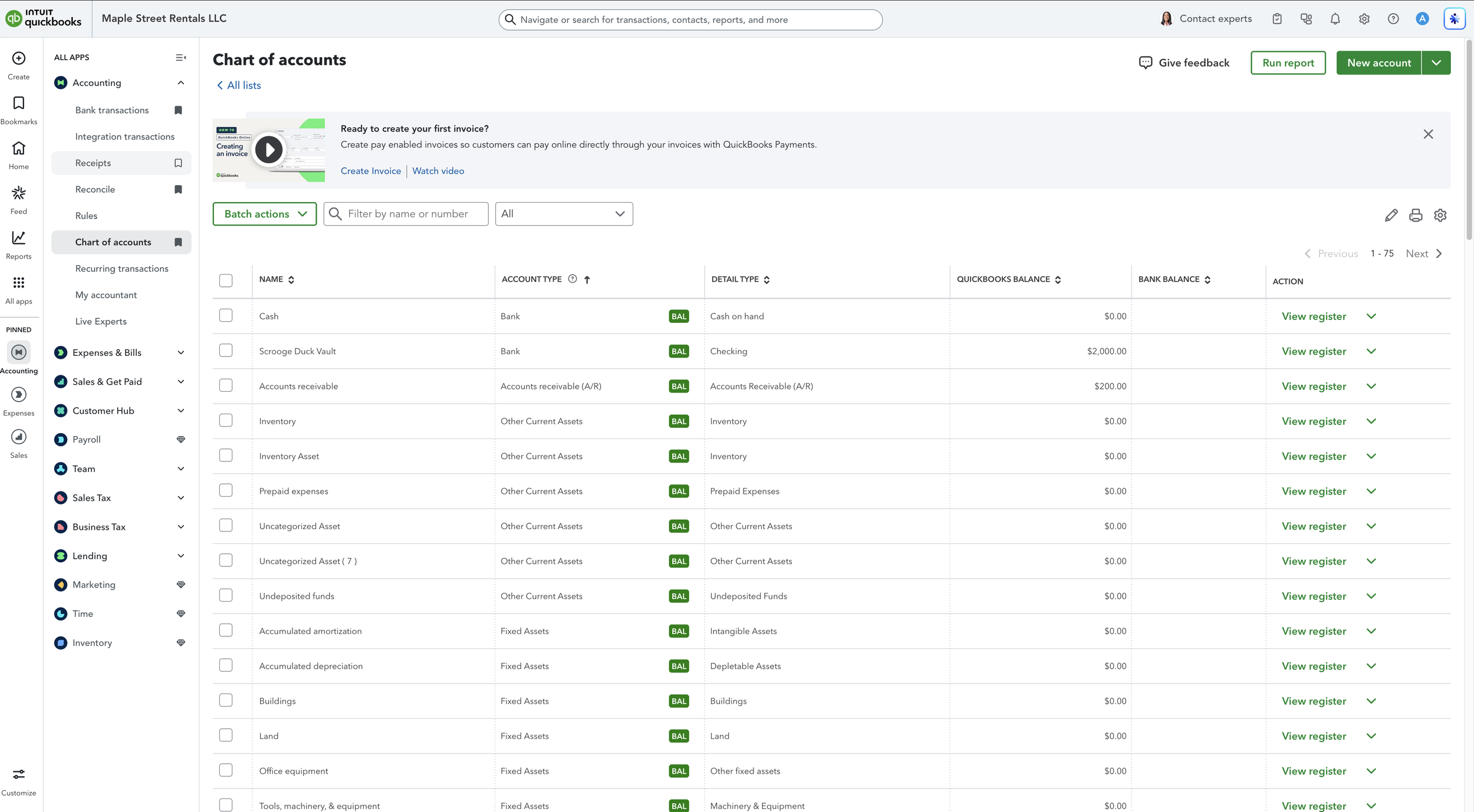
If you’ve ever opened QuickBooks, clicked into the Chart of Accounts, and immediately felt overwhelmed… you’re not alone.
Most small business owners underestimate this step. They think bookkeeping is just “categorizing transactions.” But if your Chart of Accounts isn’t structured correctly, everything downstream starts to break:
Your reports don’t make sense.
Your tax prep becomes messy.
Your CPA has to clean up avoidable errors.
And decision-making becomes guesswork instead of strategy.
The Chart of Accounts is not just a list. It is the backbone of your accounting system!
In this guide, I’ll walk you through:
What the Chart of Accounts actually is
Why it matters more than you think
How double-entry accounting fits in (in simple terms)
How to correctly add and structure accounts in QuickBooks
The most common mistakes small businesses make
If you run your business seriously — not as a hobby — this is foundational.
Would you like a discount on your QBO subscription? Use my referral link☘️
First: Who’s This For?
If we haven’t met before, I’m Andrew Bloom, founder of Profit Logic. I’m a PhD business student with a concentration in accounting, a QuickBooks ProAdvisor, and I work directly with small businesses to keep their books clean, strategic, and tax-ready.
I’ve seen what happens when the Chart of Accounts is set up poorly. It creates confusion that compounds month after month. My goal here is to help you avoid that entirely.
What the Chart of Accounts Actually Is
Think of your Chart of Accounts like a set of organized containers.
Every dollar-related activity in your business needs a container. Those “containers” are called accounts.
At a high level, every account falls into one of six main categories:
Assets
Liabilities
Equity
Income
Expenses
Transfers
The Chart of Accounts is simply the master list of all those containers.
If your containers are labeled correctly, organized logically, and structured properly, your reports become clear. If they’re messy or inconsistent, your reports become confusing and unreliable.
The Chart of Accounts determines how your Balance Sheet and Profit & Loss Statement are built. That means it directly affects:
Tax reporting
Cash flow visibility
Profit analysis
Investor or lender reporting
Strategic decision-making
It is not optional to get this right. If you plan on getting loans or working with investors, your financial reports need to be accurate and up-to-date so they can be pulled at any moment. This is why bookkeeping and accounting are essential business operations!

Why QuickBooks Won’t Let You Delete Certain Accounts
When you open QuickBooks for the first time, you’ll notice it automatically creates a number of accounts.
Some of them you can rename or make inactive. Others you cannot delete at all.
For example:
Accounts Receivable
This account tracks unpaid invoices — money customers or tenants owe you. It’s automatically tied to the invoice system in QuickBooks. When you create an invoice, it increases Accounts Receivable.
Because it’s built into the software’s structure, QuickBooks won’t allow you to remove it.
The same goes for other system-mapped accounts. These are required for QuickBooks to function correctly.
This is why trying to wipe your Chart of Accounts entirely and upload your own template often creates errors. The software relies on certain accounts to exist.
The Concept Everything Runs On: Double-Entry Accounting
Every accounting system — QuickBooks, Wave, Xero — runs on something called double-entry accounting.
Here’s the simple version:
Every transaction affects at least two accounts.
Why?
Because of something called the accounting equation:
Assets = Liabilities + Equity
Let’s break that down.
Assets
Everything the business owns:
Cash
Bank accounts
Accounts receivable
Inventory
Equipment
Property
Liabilities
Everything the business owes:
Loans
Credit cards
Unpaid vendor bills
Sales tax collected but not yet paid
Equity
What belongs to the owner:
Money you invested into the business
Profits retained in the business
Owner draws
Another way to think of it:
What you have = who owns it.
That equation must always stay in balance.
This is why you can’t categorize transactions randomly in QuickBooks. Every time you assign something incorrectly, you distort that equation.
A Practical Example That Makes This Click
Let’s say a business called Maple Street Rentals buys a property for $300,000.
The owner contributes $100,000 as a down payment.
The bank provides a $200,000 loan.
Now the business owns a $300,000 property.
But that property is financed by:
$200,000 liability (owed to the bank)
$100,000 equity (owner’s investment)

So:
$300,000 Assets = $200,000 Liabilities + $100,000 Equity
This balance must always hold true.
When you record this transaction in QuickBooks, at least two accounts are impacted:
An asset account increases (property).
A liability account increases (loan).
Equity reflects the owner contribution.
If you categorize incorrectly, your balance sheet won’t reflect reality.
“Buckets” vs Real Accounts
Not every account in your Chart of Accounts is a physical bank account.
Some are simply categories.
For example:
Advertising expense
Office supplies
Repairs & maintenance
Software subscriptions
These are expense buckets. They help you group transactions for reporting purposes.
However, real-world accounts must be separate:
Each bank account needs its own account in QuickBooks.
Each credit card needs its own account.
You cannot combine multiple bank accounts into one bucket. That would make reconciliation impossible.
Balance Sheet vs Profit & Loss Accounts
QuickBooks organizes accounts into two major reporting categories:
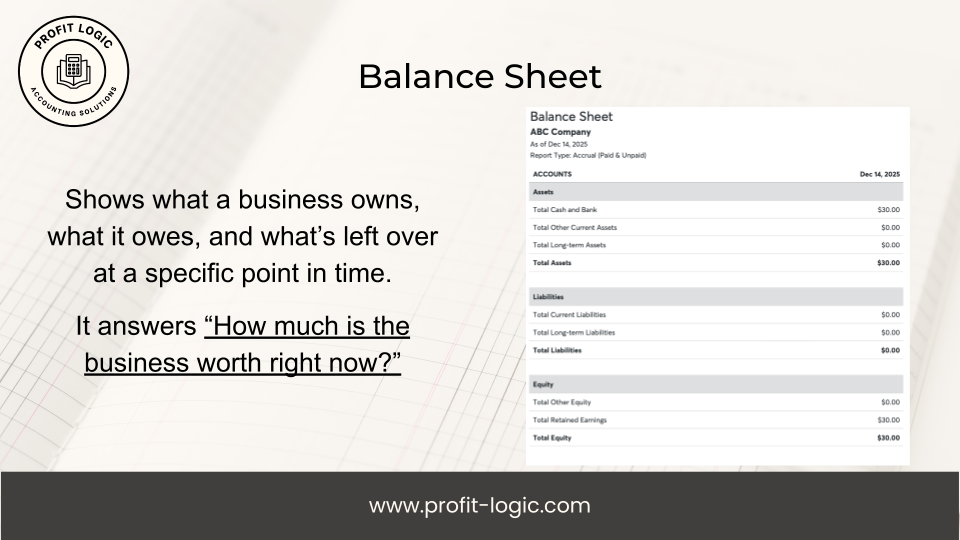
Balance Sheet Accounts
Assets
Liabilities
Equity
These accounts represent the financial position at a specific point in time.
Profit & Loss Accounts
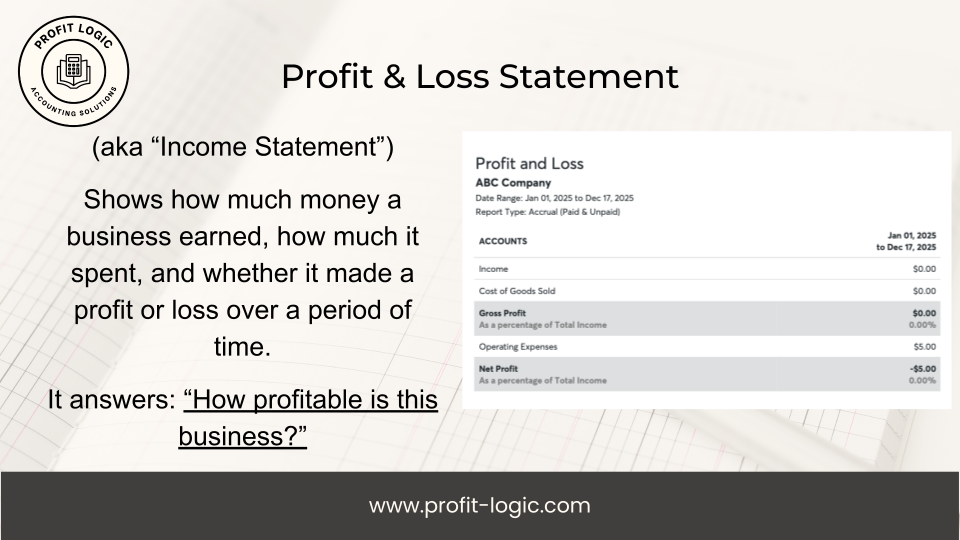
Income
Cost of Goods Sold
Expenses
These accounts represent performance over a period of time.
When creating a new account in QuickBooks, selecting the correct account type determines where it shows up on reports. That classification matters for taxes and financial analysis.
Choosing the wrong type can distort your reporting.
How to Add a New Account in QuickBooks
To create a new account:
Go to Chart of Accounts.
Click “New.”
Enter the account name.
Choose the correct account type.
Choose the appropriate detail type.
Save.
The account type is critical. It determines whether the account lives on the Balance Sheet or the Profit & Loss statement.
For example:
If Maple Street Rentals wants to track a specific property separately:
Name: 1234 Maple Street
Account Type: Asset
Detail Type: Other Long-Term Asset
When created, it will initially show a $0 balance. It’s just a bucket. The balance appears only after you record transactions.
The Core Account Types You’ll See
Assets
Checking accounts
Savings accounts
Accounts receivable
Inventory
Equipment
Property
Liabilities
Credit cards
Bank loans
Accounts payable
Sales tax payable
Equity
Owner investment
Owner draw
Retained earnings
Income
Sales
Service revenue
Rental income
Cost of Goods Sold (COGS)
Direct costs required to produce your product or service.
Expenses
Advertising
Payroll
Subscriptions
Rent
Insurance
Supplies
Most small businesses primarily work with income and expense accounts, but understanding the full structure is essential.

Example: Adding a Bank Account and Credit Card
Let’s say Maple Street Rentals opens:
Scrooge Duck Vault Bank (checking account)
Chase Bank (credit card)
Here’s how you would set them up.
Checking Account
Account Type: Bank
Detail Type: Checking
This shows up as an asset on the Balance Sheet.
Credit Card
Account Type: Liability
Detail Type: Credit Card
This shows up as a liability on the Balance Sheet.
Even if you don’t connect them to online banking immediately, you still need the buckets created first.
Useful Chart of Accounts Tools in QuickBooks
Once inside the Chart of Accounts screen, you have several tools that make management easier.
You can filter accounts to view only Balance Sheet or only Profit & Loss accounts. You can mark accounts inactive rather than deleting them. You can edit names and detail types. You can search for specific accounts quickly.
One particularly useful feature is “View Register.” Clicking this shows every transaction that has hit that account. If something looks off in a report, the register is often where you’ll spot the problem.
There’s also a dropdown menu beside each account where you can edit, connect bank feeds, make inactive, or run reports directly.
These tools help you audit and maintain structure over time.
Common Mistakes Small Businesses Make
After working with many small businesses, here are the most common Chart of Accounts mistakes I see:
Too many unnecessary accounts.
Duplicate expense categories.
Mixing personal and business transactions.
Incorrect account types.
Combining multiple bank accounts into one bucket.
Ignoring equity accounts.
More accounts does not mean better bookkeeping. In fact, overcomplication often creates confusion.
Your Chart of Accounts should be:
Clean
Logical
Strategic
Aligned with how your CPA prepares taxes
When DIY Bookkeeping Stops Making Sense
If your business is small and simple, learning to set this up properly is a smart move. It builds literacy in your numbers.
But as your business grows, transactions increase, revenue streams diversify, and tax complexity expands, DIY bookkeeping becomes riskier.
At some point, the cost of mistakes outweighs the cost of hiring a professional.
There’s nothing wrong with doing your own books early on. Just understand that complexity compounds.
The Real Takeaway
Your Chart of Accounts is not just a technical setup screen in QuickBooks.
It is the structure that determines whether your bookkeeping becomes:
Clean or chaotic
Insightful or confusing
Tax-ready or expensive to fix
When it’s built correctly, your reports become powerful tools. You can clearly see:
Profit margins
Expense trends
Cash flow patterns
Owner equity growth
When it’s built poorly, you’re essentially flying blind.
Next Steps
If you’re inside QuickBooks right now, do this:
X Open your Chart of Accounts.
X Confirm each real-world bank and credit card has its own account.
X Check that account types are accurate.
X Simplify unnecessary duplicates.
X Use “View Register” to confirm transactions are landing correctly.
If you’d like a customized Chart of Accounts structure built specifically for your business model — whether you’re a service provider, real estate investor, contractor, or online entrepreneur — that’s exactly what we do at Profit Logic.
Clean books create clear strategy.
And clear strategy is what turns a business into a scalable asset instead of a stressful guessing game.